Printer unresponsive status E2E
This page documents the real-app end-to-end check for the printer unresponsive connection status.
The screenshots below are captured from the actual Expo web app (frontend/App.js through Main, UserLayout, UserPrinterStatusConnection, and NavBarMenuSettingsModalPrintersItem). The E2E script simulates the backend responses that a dmesg-backed poller failure would produce:
{
  "connectionStatus": "unresponsive",
  "connectionDiagnostic": "[73476.224266] usb 3-2: device descriptor read/64, error -71\n[73492.234561] usb usb2-port4: attempt power cycle"
}
Only the backend API inputs are mocked; the rendered UI is the real application.
How to reproduce
Start the development stack or otherwise serve the frontend web app on http://127.0.0.1:8081:
./run.sh -e dev --no-build
Then run the real-app Playwright check:
python3 scripts/e2e_printer_unresponsive_status.py
The script saves screenshots into docs/assets/printer-unresponsive-status/.
E2E evidence
The test asserts:
the active printer page renders unresponsive from
/user/printer/selected/status;the main status question-mark diagnostic modal includes the internal
dmesgerror snippet;the settings printer card badge renders unresponsive;
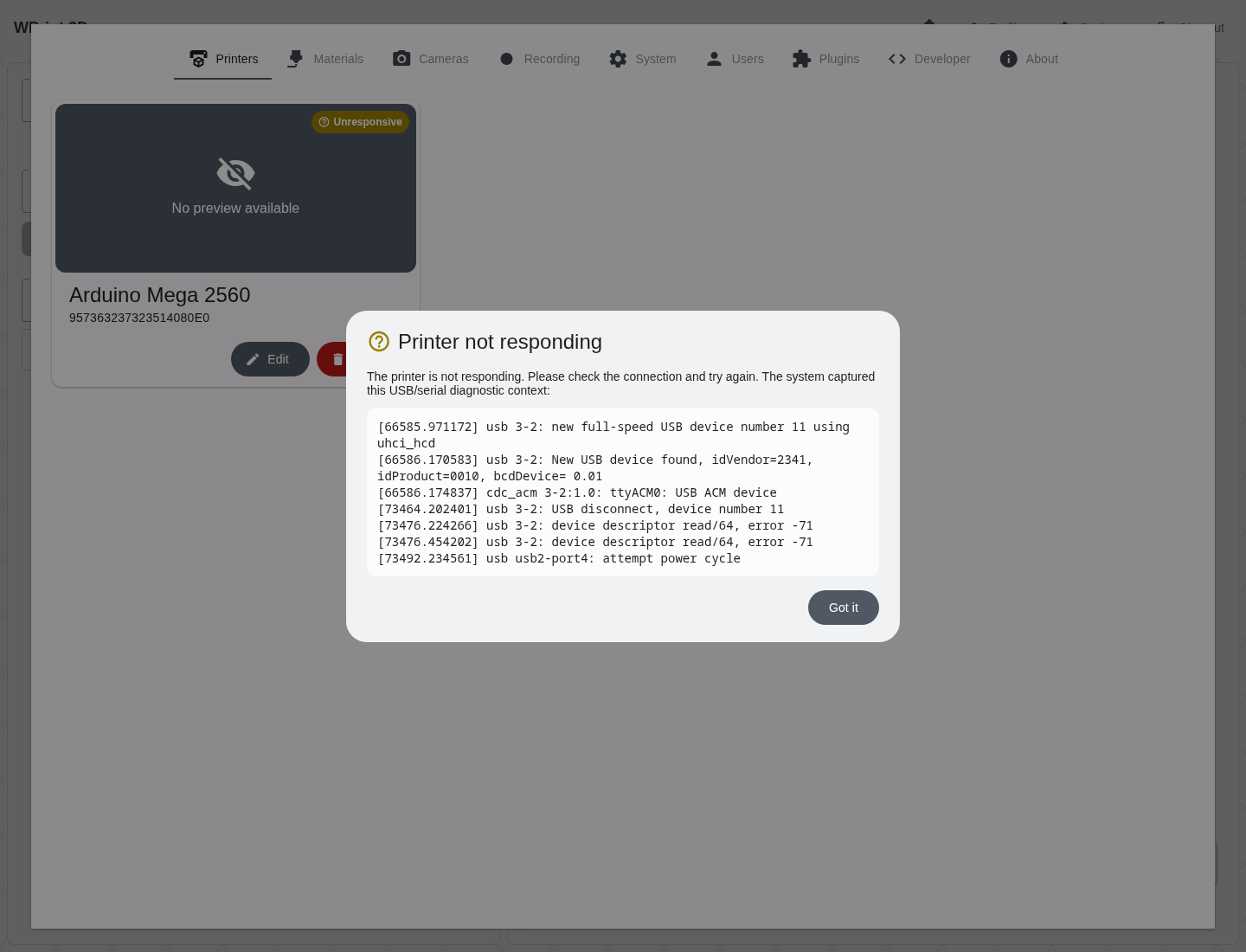
clicking the settings badge opens a diagnostic modal with the same filtered kernel context;
clicking Edit on the printer shows the detailed diagnostic box in the details tab.
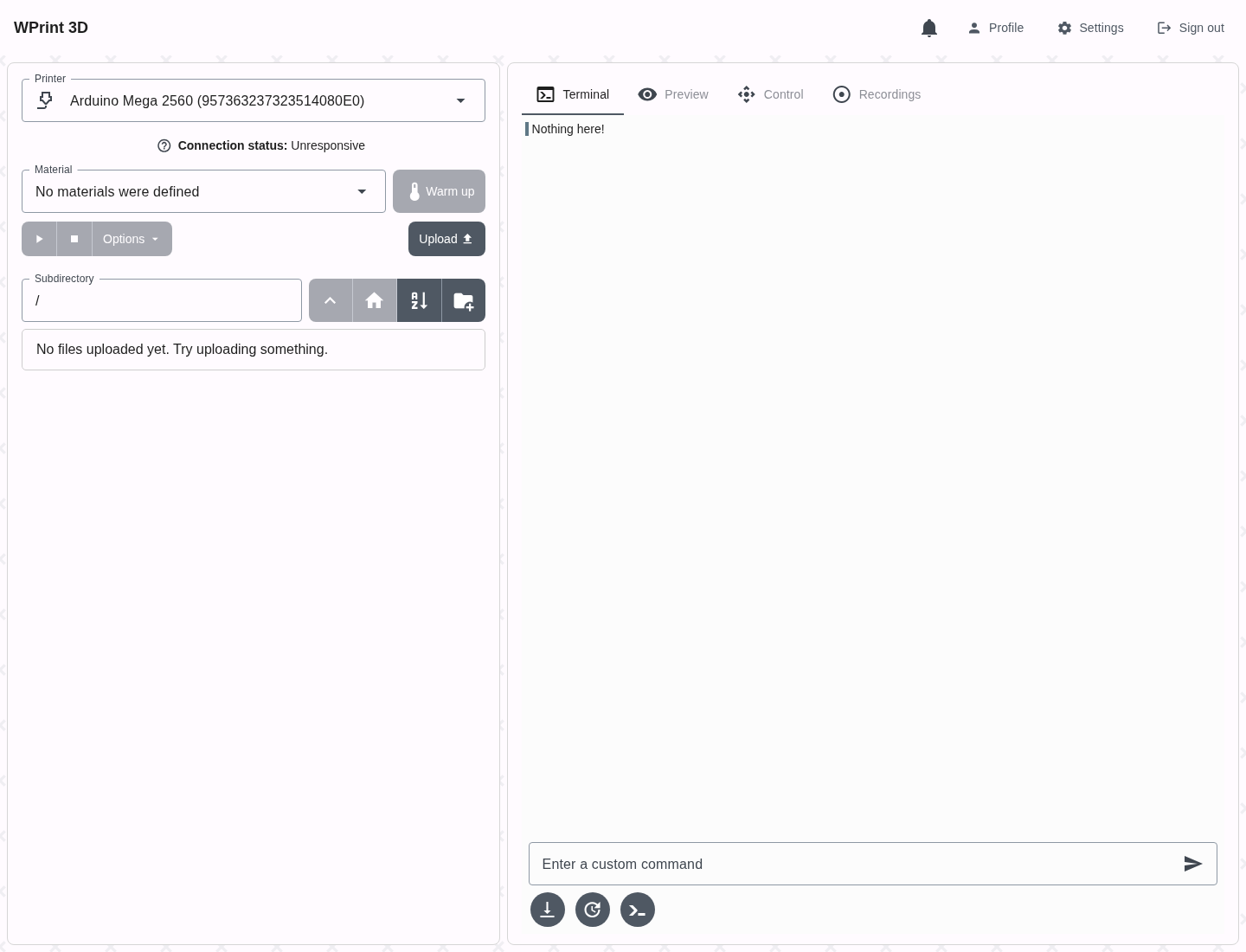
1. Real app active printer status
The active printer panel displays unresponsive using the real application shell and status component.
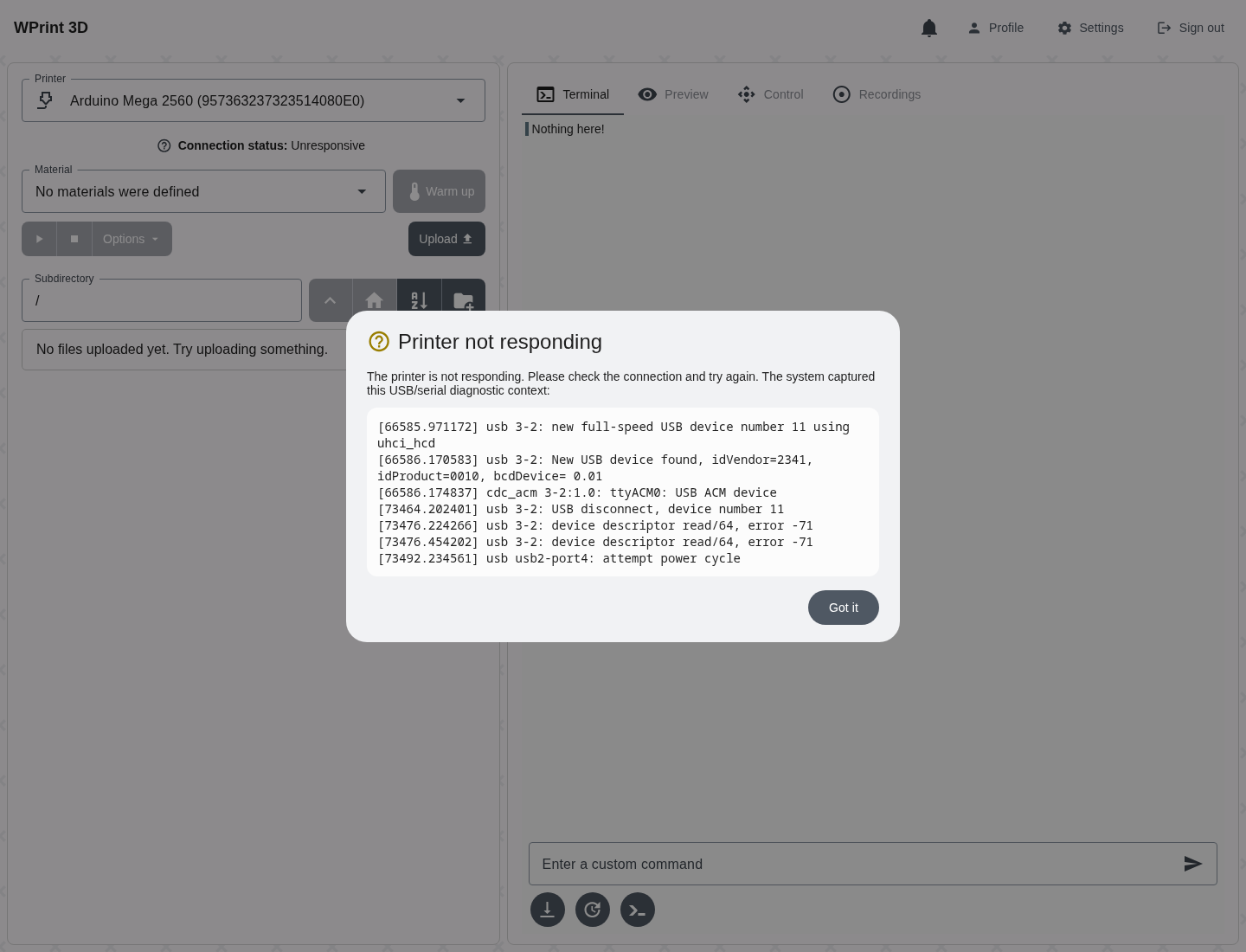
2. Main status diagnostic modal
Clicking or tapping the status-bar question-mark in the real app opens the troubleshooting modal with device descriptor read/64, error -71.
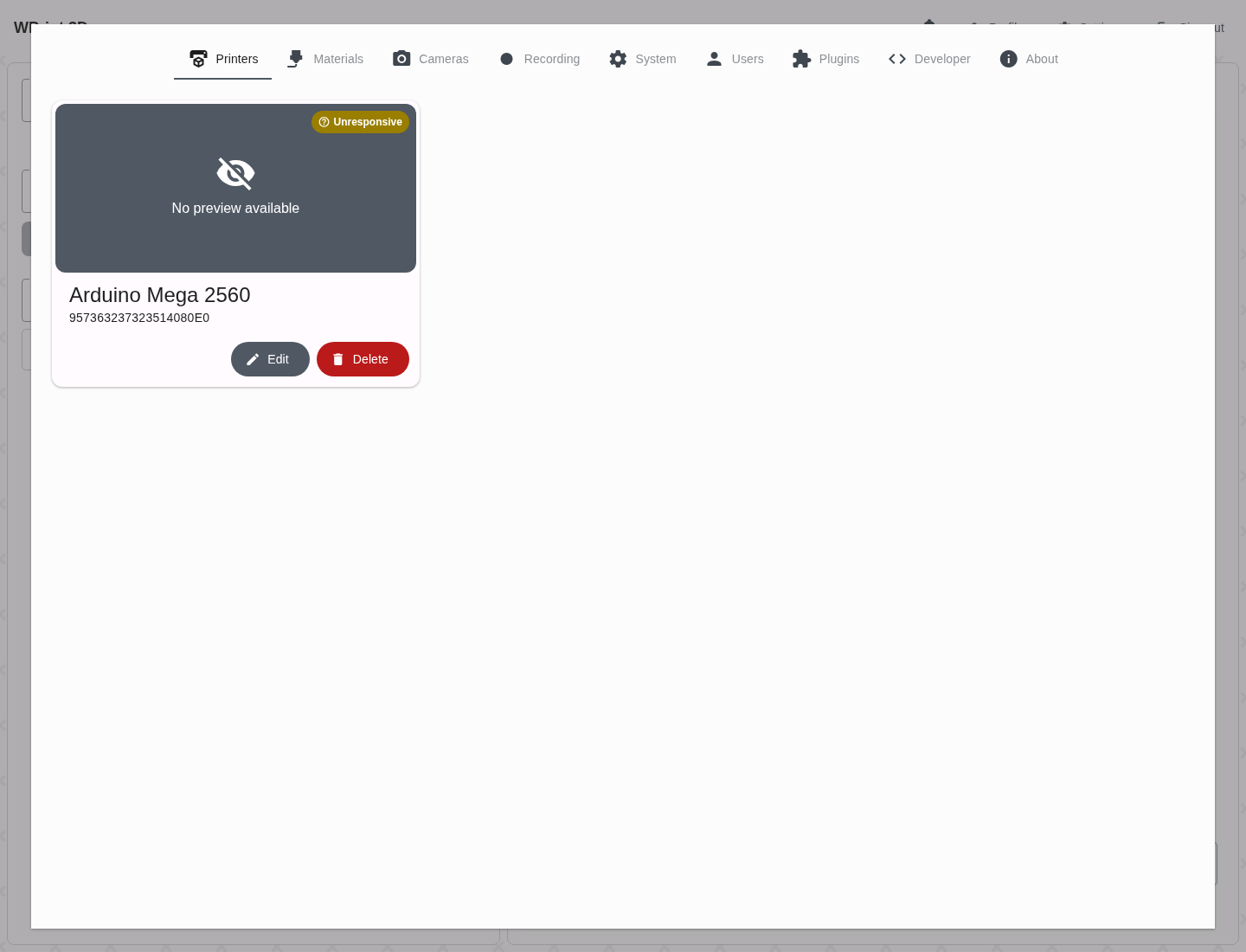
3. Real app settings badge
The printer settings card renders the same unresponsive state in the real settings modal.
4. Settings badge diagnostic modal
Clicking or tapping anywhere on the settings badge opens the same diagnostic context, including the USB power-cycle clue.
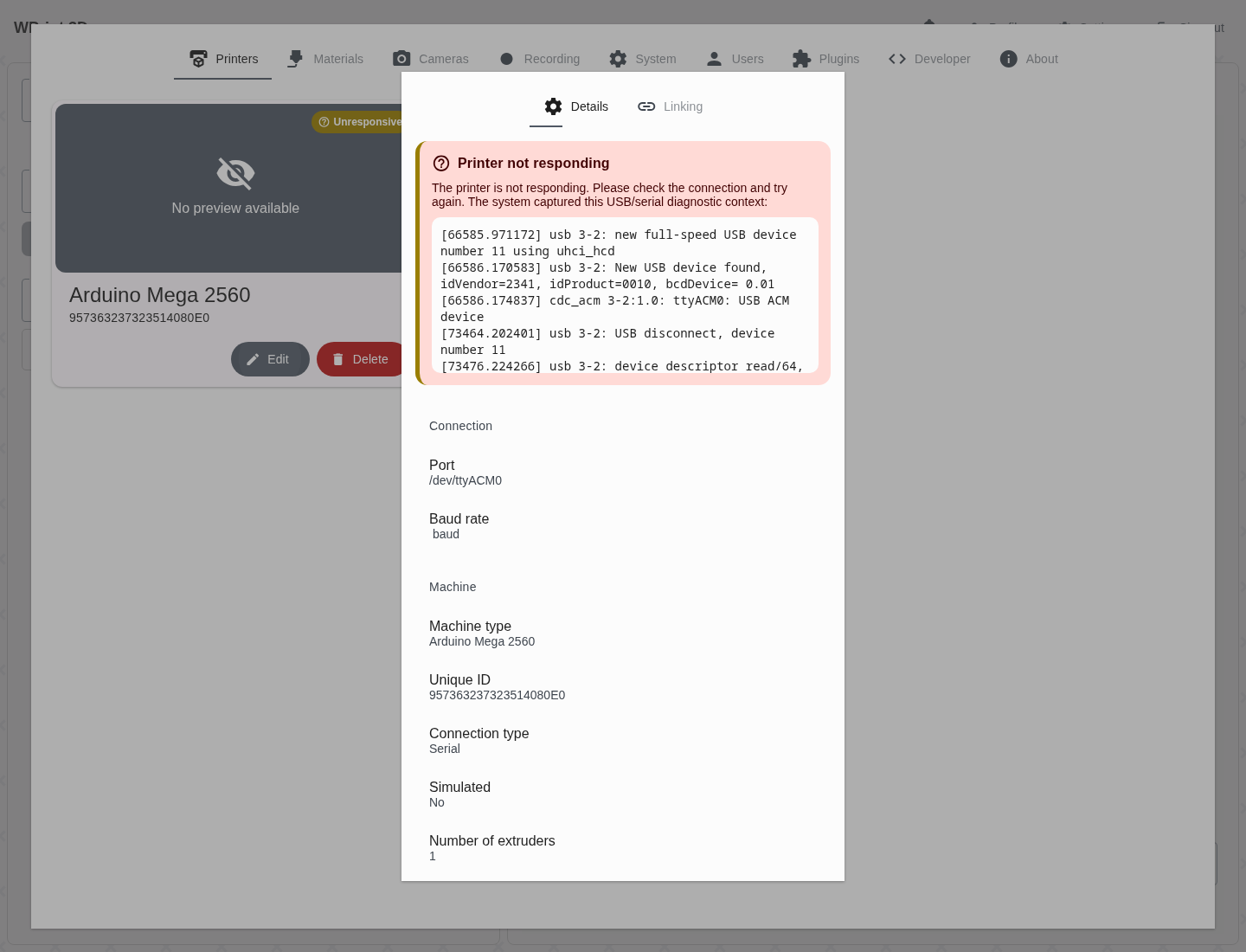
5. Edit details diagnostic box
Clicking Edit on the unresponsive printer opens the details tab with a compact alert-like diagnostic box and the filtered dmesg context.